How to Convert a Photo to a PES Embroidery File — No Software Needed
You've got a photo — maybe your kid's drawing, a company logo, or a picture of your dog — and you want to stitch it on your embroidery machine. The problem? Your machine needs a PES or DST file, and your photo is a JPEG.
Traditionally, you'd need expensive digitizing software like Hatch, Wilcom, or Embrilliance to convert that photo into a stitch file. These programs cost anywhere from $100 to $1,500, take months to learn, and even then the results require a lot of manual tweaking.
What if you could skip all of that?
The Old Way vs The New Way
The Old Way — Digitizing Software
Buy software ($100-$1,500) → install on your computer → learn the interface (weeks/months) → manually trace the photo → set stitch types per region → tweak density and underlay → export PES file → test stitch → fix problems → test again. Total time: hours per design.
The New Way — KuduCraft
Go to kuducraft.com → upload your photo → pick your fabric colour → click "Create embroidery file" → download PES or DST. Total time: about 30 seconds.
How It Works — Step by Step
1 Upload your photo
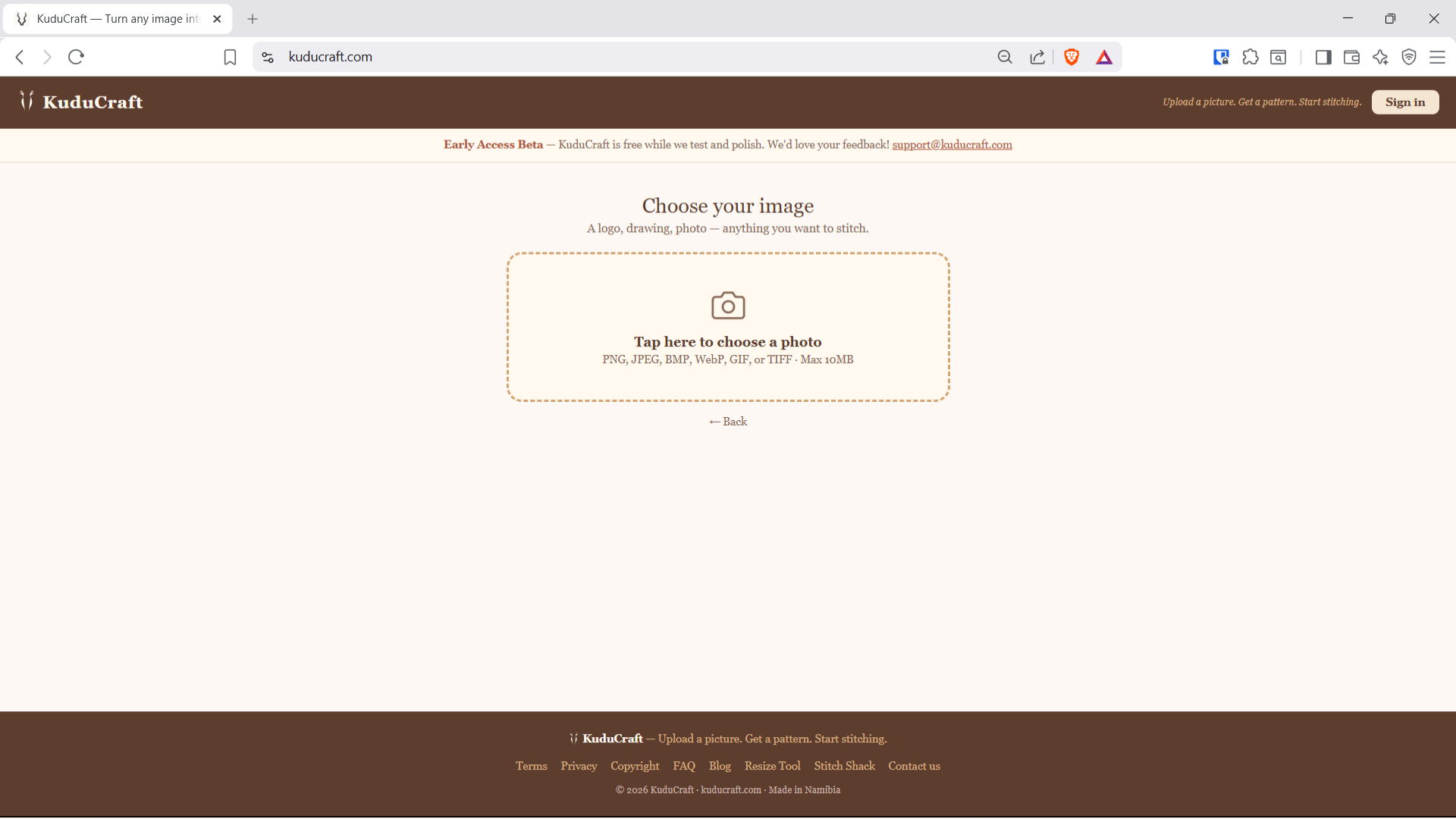
Go to kuducraft.com and click "Let's get started." Upload any image — JPEG, PNG, BMP, WebP, GIF, or TIFF. Logos, photos, drawings, clipart — anything works.
2 Choose "Machine embroidery"
Tell us you want a machine embroidery file (not a hand embroidery pattern). This switches the engine to generate real stitch data instead of a PDF guide.
3 Set up your design
Choose how to handle your image's background (cut it out for badges and logos, fill it solid, or keep everything), and pick your fabric colour from 8 options so the preview shows the design the way it will really look.
4 Tell us what fabric you're stitching on
This is the setting most free converters don't even offer — and it matters more than beginners expect. The same design needs different stitch settings on different fabric: stretchy t-shirt knit distorts and needs more pull compensation and stabilising underlay; towelling has a pile that swallows stitches unless the design is dense enough; denim is stiff and prefers a lighter touch; caps have their own rules.
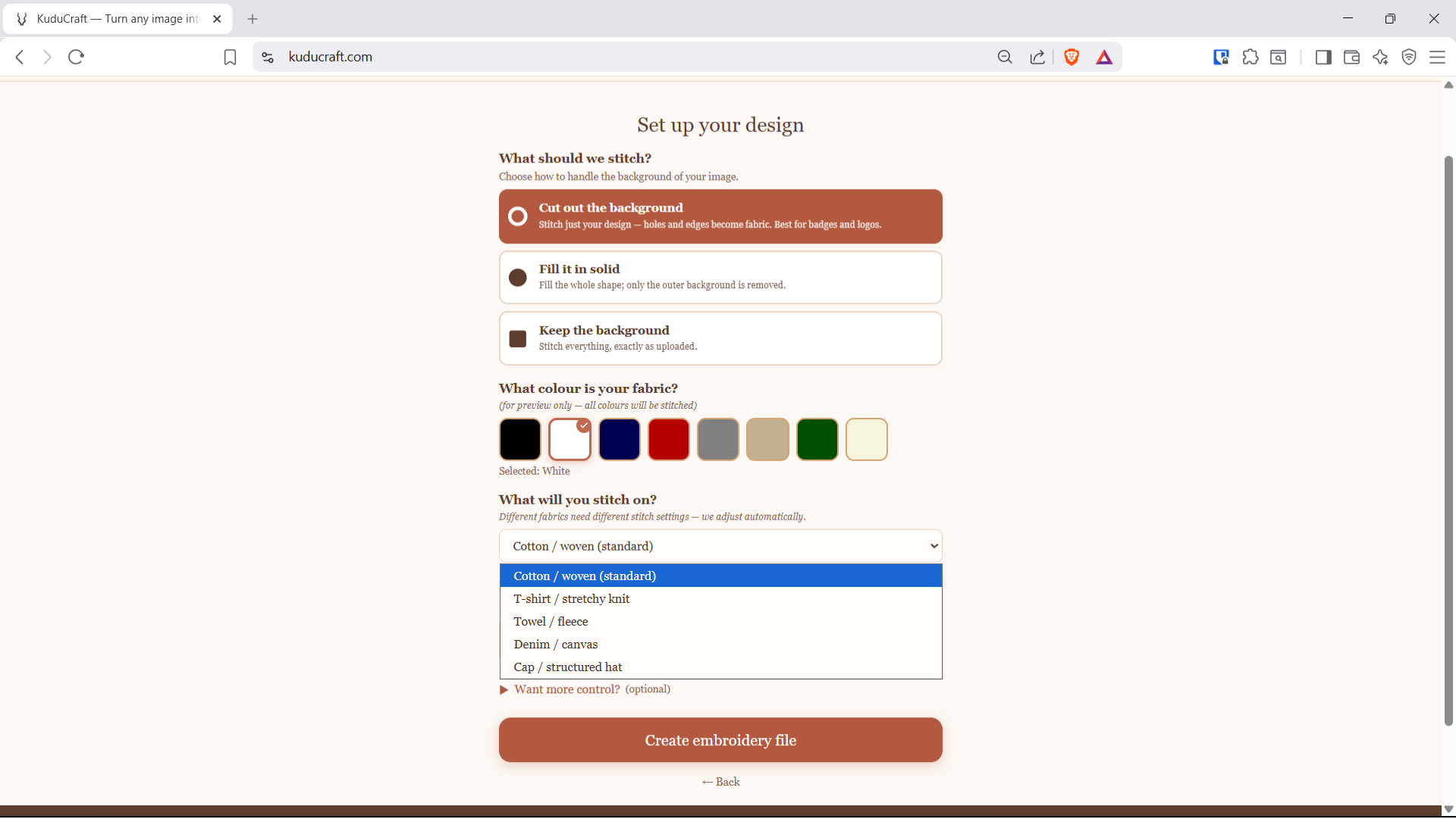
Pick Cotton, T-shirt/Stretchy, Towel/Fleece, Denim/Canvas or Cap, and KuduCraft adjusts the underlay, density and pull compensation automatically — the way a professional digitizer would.
5 Download your file
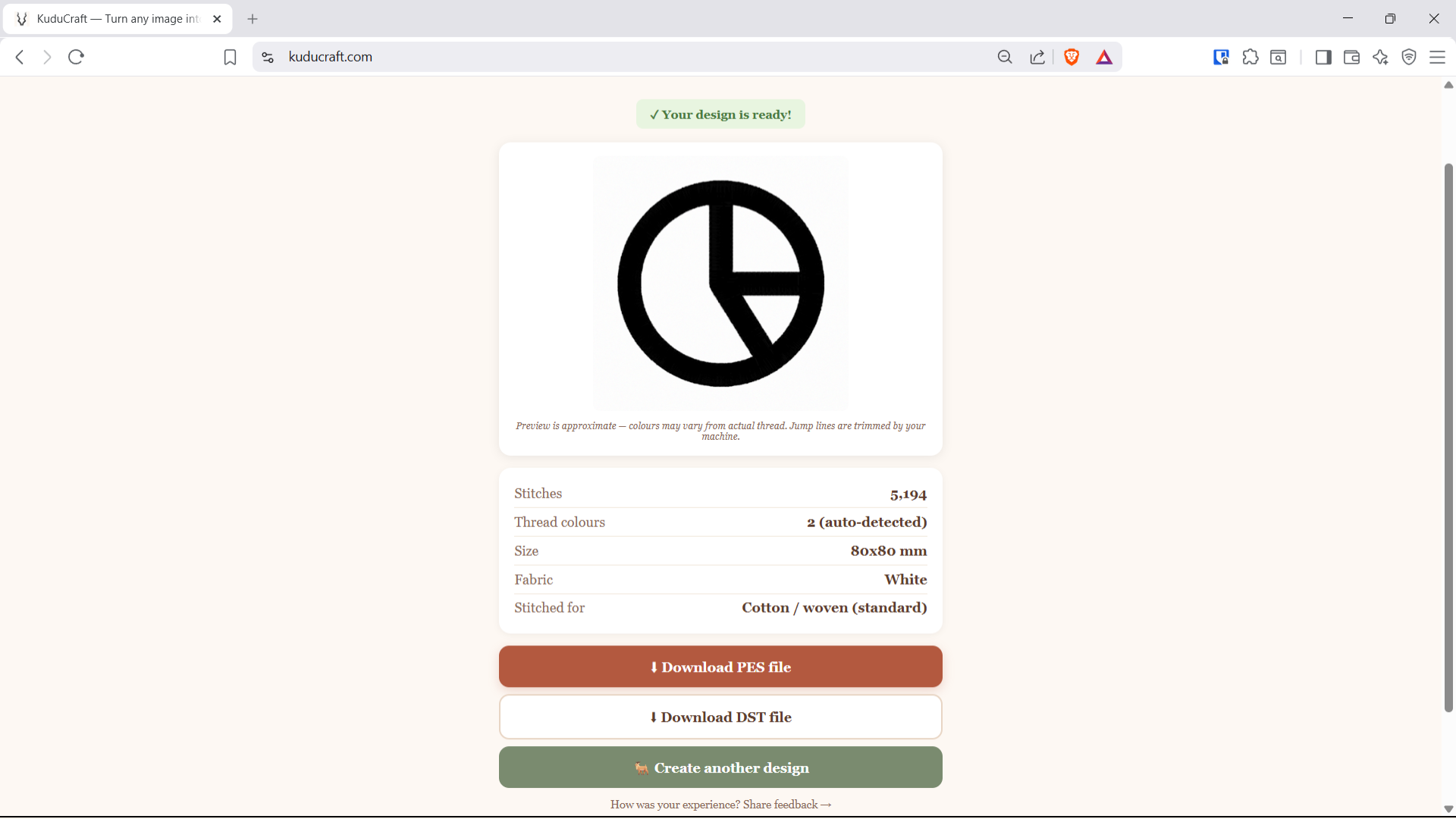
Hit "Create embroidery file" and wait about 10 seconds. You'll see a preview of your design with stitch count, thread colours, the finished size, and which fabric it was stitched for. Then download as PES (for Brother, Babylock, Bernina) or DST (universal format).
What Happens Behind the Scenes
When you upload a photo, our engine runs it through a six-stage pipeline:
1. Preprocessing: Your image is cleaned up — resized to fit your chosen design dimensions, noise is reduced, and the alpha channel (transparency) is removed.
2. Colour quantization: The millions of colours in your photo are reduced to a small number of thread colours (typically 4-8). The engine matches each colour to the closest real thread from the Brother palette, so you can actually buy the threads it recommends.
3. Layer separation: Each thread colour becomes its own layer — a binary mask showing exactly where that colour should be stitched.
4. Stitch generation: Each region gets the stitch type it deserves. Narrow shapes, borders and lettering become proper satin columns — built on a foundation of underlay (a centre run plus a wide zig-zag that stabilises the fabric) with continuous alternating cover stitches over the top, drawn slightly wider than the artwork to compensate for thread pull. Larger areas get fill stitching. The fabric type you chose adjusts all of it.
5. Optimisation: Jump stitches (the thread travel between sections) are minimised, and the stitch order is arranged to reduce thread changes and trims.
6. Export: The stitch data is written as a valid PES or DST file, ready for your machine to read.
You don't need to understand any of this — it all happens automatically. But if you're curious, that's what's happening in those 10 seconds.
What Makes a GOOD Auto-Digitized File?
Honest talk: auto-digitizing has a reputation problem, and it earned it. Plenty of free converters just trace your picture and flood it with stitches. The file loads fine — then puckers, gaps, or jams on actual fabric. Here's what should be happening under the hood, and what we obsess over at KuduCraft:
- Underlay — foundation stitching laid before the visible stitches, tacking the fabric to the stabiliser and giving the top stitching something to sit on. Without it, satin sinks and shifts.
- Pull compensation — thread under tension pulls fabric inward as it stitches. Good files are drawn slightly wider than the artwork so the finished result comes out right. Skip this and circles get flat sides.
- Real satin construction — smooth columns and borders stitched as proper alternating satin, not chopped into fragments with walking stitches down the edges.
- Fabric-aware settings — everything above changes with the fabric you're stitching on.
- Sensible stitch order — fewer jumps and trims means faster stitching and a cleaner back.
We test our engine against professional software, run every change through an automated regression gate, and stitch physical sew-outs with a professional embroiderer before improvements ship. It's a beta and we're improving weekly — but improving measurably.
What Images Work Best?
Not all images make great embroidery. Here's what works and what doesn't:
Great for embroidery:
- Logos and clipart — clean lines, bold colours, simple shapes. These convert beautifully.
- Children's drawings — bold, simple, colourful. Perfect for a sentimental stitch-out.
- Simple illustrations — cartoon animals, flowers, icons. The simpler the better.
- High-contrast photos — a red rose on white background, a silhouette against a sunset.
Challenging for embroidery:
- Detailed photographs — a landscape with thousands of colours won't reduce well to 6 threads. The result will be simplified — which might be exactly what you want, or might lose too much detail.
- Very small text — embroidery machines struggle with text smaller than about 8mm tall. If your design has text, make sure it's large.
- Gradients and shadows — smooth colour transitions are hard to reproduce in thread. The engine will do its best, but step-changes between colours are inevitable.
What About the Colour of Thread?
The engine automatically detects the main colours in your image and maps them to real thread colours. When you download the file, the preview screen shows you exactly which colours were used and what percentage of the design each colour covers.
If you want more control, expand the "Want more control?" section before generating. There you'll find a colour slider that lets you set the maximum number of thread colours from 2 to 16. Fewer colours = simpler design with less thread changes. More colours = more detail but more work loading threads.
For most designs, the auto-detected colour count works well. Start there, and adjust only if the preview doesn't look right.
Do I Need to Buy Special Thread?
The engine maps colours to standard thread palettes that come with most embroidery machines. If you already have a collection of embroidery thread, you'll likely have colours close enough to work. Exact colour matching isn't critical — your eye blends close colours together, and slight variations can actually make the design look more natural.
If you want to buy specific threads to match, the preview screen shows the RGB colour values for each thread. Take those to your thread supplier and they can help you find the closest match in whatever brand you prefer — Brother, Madeira, Isacord, or Sulky.
How Big Should the Design Be?
You choose the finished size when you generate — up to 120mm, with proportions kept true to your original image. For most home machines and standard 4x4 inch hoops, around 80mm (about 3 inches) is the sweet spot.
One tip from our own testing: small details shrink faster than thread does. A design that looks crisp at 80mm may lose its finest lines at 30mm, simply because a strand of thread is 0.4mm wide and physics gets a vote. And if you need the same design in another size later, don't resize the stitch file in other software — just run the image through again at the new size. Stitch density and lengths are calculated fresh for every size, which is exactly how it should be. There's also our free resize tool for printing templates at any hoop size.
What Machines Can Read PES Files?
PES is the native format for Brother embroidery machines, but it's also read by several other brands:
- Brother — all embroidery models (Innov-is, PE series, SE series)
- Babylock — most embroidery models (uses Brother's technology)
- Bernina — can import PES files through their software
If your machine doesn't read PES, download the DST version instead. DST is the most universal embroidery format and works with virtually every machine brand including Janome, Husqvarna, Pfaff, Singer, and more.
Is It Really Free?
Yes — during our beta testing phase, everything on KuduCraft is completely free. We're looking for feedback from real embroiderers stitching real designs on real machines. Your experience helps us improve the engine.
After beta, we plan to introduce a Starter tier at $10/month for unlimited designs. But the current beta is genuinely free with no credit card required.
Ready to try it?
Upload any photo and get a PES or DST embroidery file in seconds. No software to install. No experience needed.
Convert a photo to PES →Tips for a Great First Stitch-Out
- Use stabiliser. Always use appropriate stabiliser (backing) for your fabric. Without it, the fabric puckers and the design distorts. Cut-away stabiliser for knits, tear-away for woven fabrics.
- Test on scrap fabric first. Before stitching on your good shirt or tote bag, do a test run on a similar fabric scrap. This lets you check colours, density, and alignment.
- Check your hoop. Make sure the fabric is drum-tight in the hoop. Loose fabric is the number one cause of registration problems (layers not lining up).
- Don't worry about jump stitches. You'll see loose threads between colour sections — these are jump stitches. Your machine may trim them automatically, or you can snip them with scissors after the design finishes. They're normal.
- Start simple. A 3-4 colour logo is easier than a 10-colour photograph. Build your confidence with simple designs first.
What Else Can KuduCraft Do?
Machine embroidery files are just one of our products. If you also do hand embroidery, check out:
- Thread painting guides — upload a photo and get a 5-page PDF with a pencil outline, DMC thread shopping list, stitch suggestions, and a beginner's guide. Perfect for hand embroidery artists.
- Cross-stitch patterns — upload a photo and get a grid-based pattern with DMC thread codes in English, Afrikaans, or Deutsch.
- Free resize tool — resize any pattern or image to fit your embroidery hoop at kuducraft.com/resize.
All available at kuducraft.com. Upload a picture, get a pattern, start stitching. 🦌
Got feedback on your stitch-out? We'd love to see it! Email us at support@kuducraft.com or fill in our feedback form.